
Overview of MyChart in the ED
When an ED patient opens MyChart on their device, they're immediately shown information about their current ED visit. They can see their chief complaints, lab results, recent and upcoming medications, who's caring for them, and a basic overview of what's happening now in their care journey based on their current status.
Patients might also see tasks to complete, such as self-registration, questionnaires, education topics, and consent forms.
Note that sensitive information, such as certain chief complaints, lab orders, and medications, might be hidden from patients and proxies based on your organization's policies.
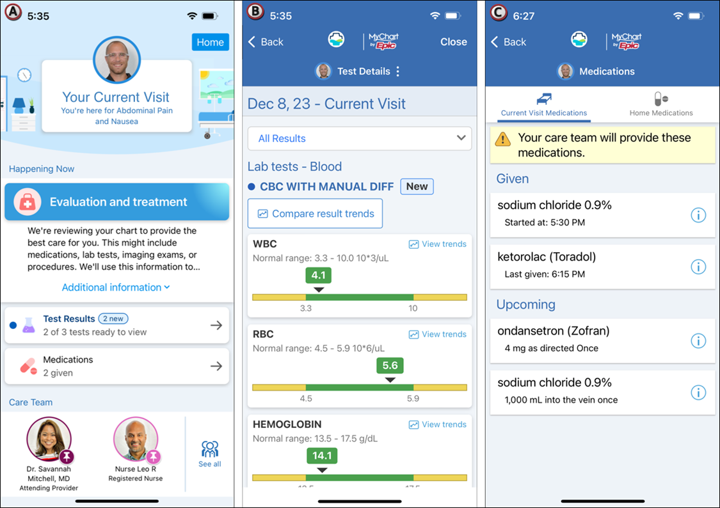
On the ED Bedside home screen (A), patients see basic information about their ED visit. If they tap the Test Results section, they see details about their lab results (B) that have been released to MyChart. If they tap the Medications section, they see Given, Upcoming, and As Needed medications (C).
Review Lab Results & MyChart Status
Patients can view released lab results in MyChart. You can review which results are released or pending release.
- In the patient’s chart, open the More menu and select Results Review.
- Click a result to view its details.
- Look for the following icons:
 The result has already been released to MyChart.
 The result is scheduled for release to MyChart.
 The result has patient comments in MyChart. You can review these comments in the result report.
- Review whether the Release Results to MyChart checkbox is selected.
- Click a past result to confirm whether the patient has viewed it.
Respond to Patient Request in MyChart
Patients can request items such as snacks, blankets, or clean gowns directly from MyChart.
- Open ED Narrator.
- In the Event Log or Tasks toolbox, find the incoming request.

- Click the task to mark it as complete. For example, click to mark that water was delivered.
- To skip a task (e.g., snack while the patient is NPO), click the Skip icon to remove the request.
